Get your first alert
A trigger tells Nag: “when you see this in the log, do that.” You will make one that shows a message on screen when someone sends you a tell. Then you will test it without leaving Nag.
1. Pick or make a folder
Triggers live in folders.
- Click the Triggers tab.
- Look at Trigger folders on the left. If you have none, click the + button above the list.
- Type a Folder Name, for example
My Triggers. - Click Create Folder.
- Click the folder to select it. Make sure it is highlighted. Clicking a selected folder again deselects it.
You will see the folder highlighted.
2. Start a new trigger
- Click New Trigger. If no folder is selected, a window called Select a Folder asks for one. Pick it there.
- A window called Trigger opens on the Capture tab.
- In Trigger Name, type
Tell alert.
3. Say what Nag should look for
- Under Phrases, find the row that is already there. Click New only if you want a second phrase.
- Click the Capture Phrase box in that row.
- Type
tells you, -
Leave the RegEx box unticked. It is for advanced patterns. See the Documentation if you are curious.
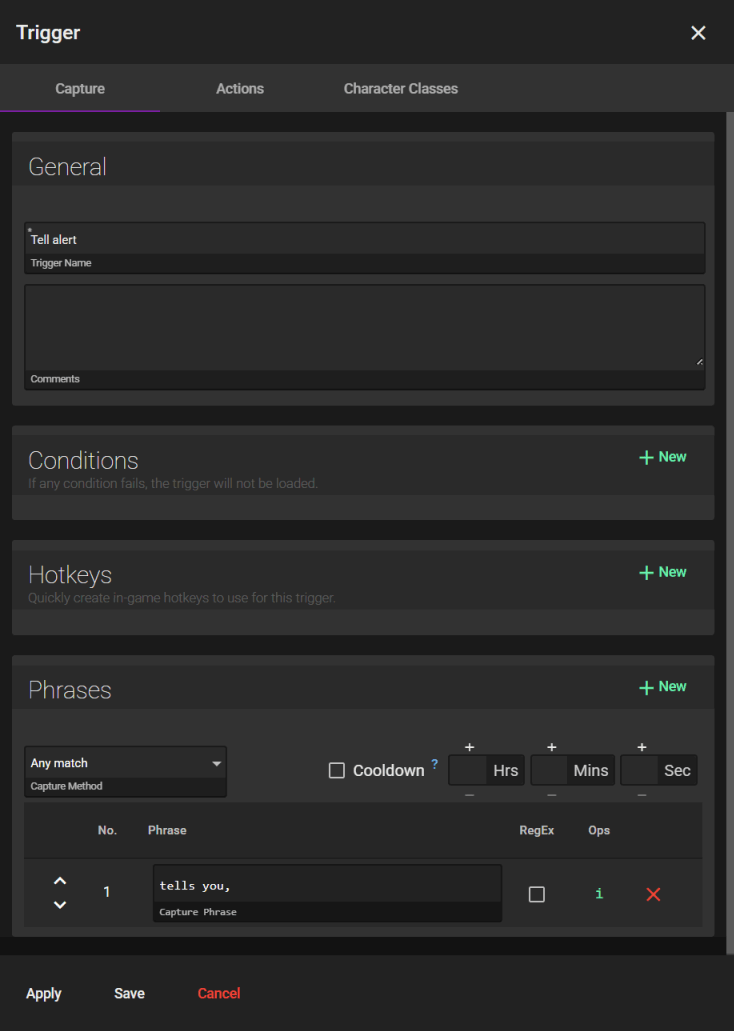
Nag looks for these words anywhere in a log line. It ignores capital letters. Any line containing tells you, counts.
4. Say what Nag should do
- Click the Actions tab.
- Click New. A card appears.
-
Click the Action Type box, which says Unset Action, then click Display Text.
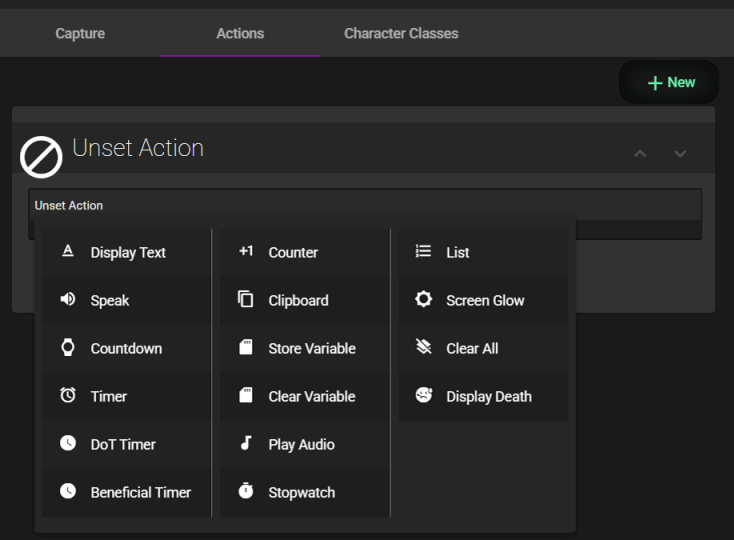
- Open Trigger on phrase and pick
tells you,. - In Display Text, type
You got a tell! - Open Overlay Window and pick Text Notifications. An overlay is the on-screen box where Nag shows text and timers.
-
Next to Overlay Window, type
8in the Sec box. The text stays on screen for that many seconds. If you leave it empty, the text vanishes at once.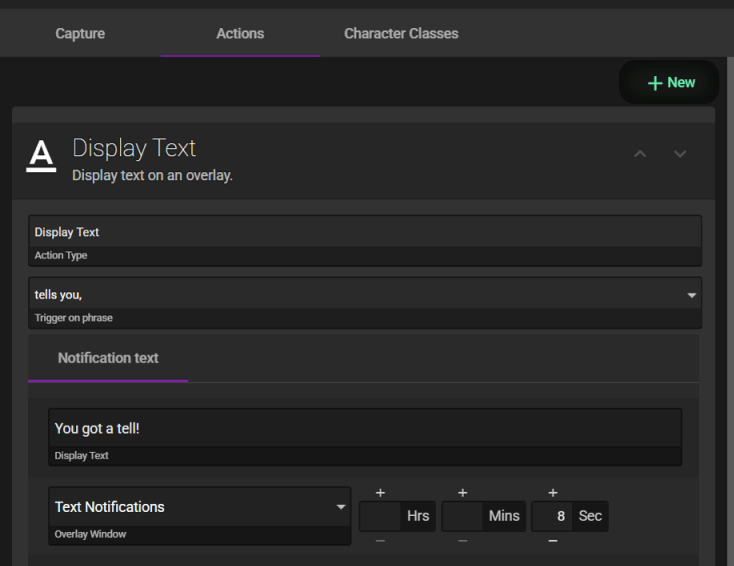
Do not skip Trigger on phrase. Without it, the action never runs.
5. Save it
Click Save. The window closes and your trigger is in the list. A check mark next to it means it is turned on.
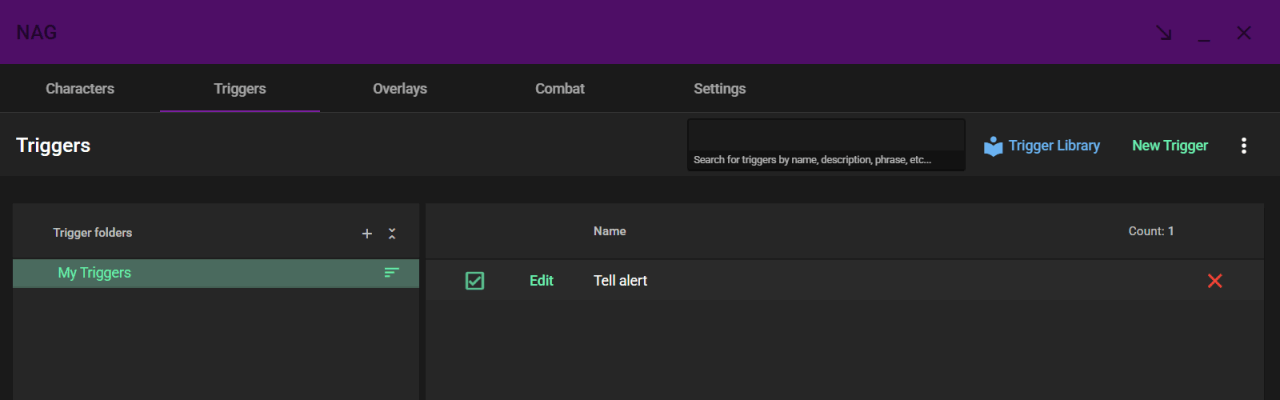
6. Test it
You can test without logging in to the game.
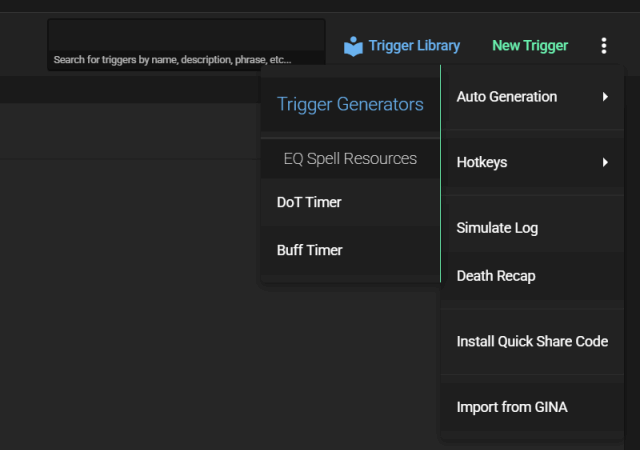
- In the Triggers tab, click the three dots at the top right.
-
Click Simulate Log. A window called Log Simulation opens.
- Click Paste Log Entries.
-
Paste this line, then click OK:
[Sun Nov 01 20:15:02 2026] Fizzlethorp tells you, 'Ready for invite?'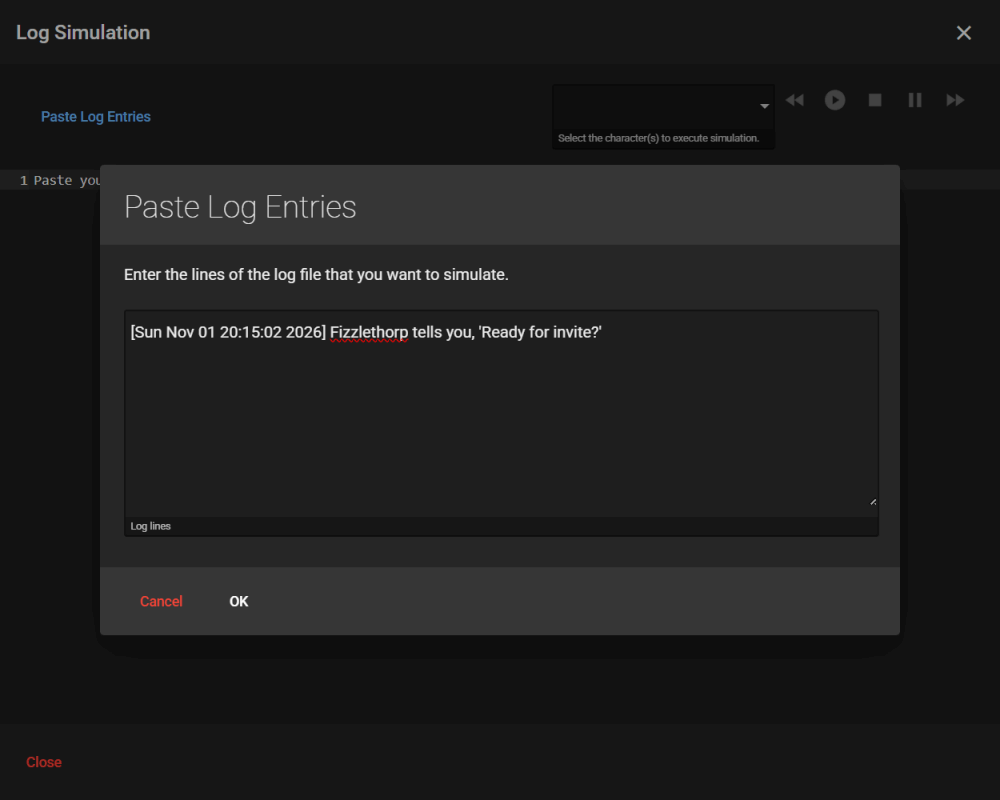
- Open the character list and pick your character.
- Click the green play button.
You will see You got a tell! on your screen in the Text Notifications overlay. The test also shows how long it has left in the Log Simulation window.
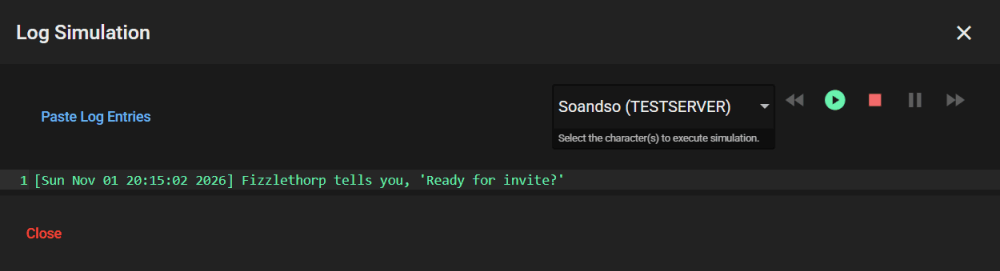

Start each line with the date and time in square brackets, like the example. A line without them borrows the time of the nearest line that has them. If no line has a time, Nag throws them all away. Nag plays the lines back with the same gaps as their times.
If nothing appears
- Is the trigger’s check mark on in the Triggers list?
- Did you pick Trigger on phrase?
- Does the line you pasted contain
tells you,exactly? - Is your character picked in the Log Simulation window?
Still stuck? See the Troubleshooting & FAQ.
Get ready-made triggers
You do not have to build everything yourself. In the Triggers tab, click Trigger Library to install packages other players made. See Downloading trigger packages.
Learn more
The Documentation explains every part of a trigger in detail.