Install Nag
Download Nag, run it and get past the Windows warning. It takes about five minutes.
1. Download Nag
- Open the latest release on GitHub.
- Scroll down to Assets.
- Click one of the two files:
| File | What it is |
|---|---|
EQ-Nag-Setup-<version>.exe | The installer. Pick this one if you are not sure. |
eq_nag_portable.exe | One file that runs without installing. It does not update itself. |
You will see the file in your browser’s downloads.
2. Run the file
- Open the file you downloaded.
- Windows may show a blue box called Windows protected your PC. This is normal. Nag’s installer is not code-signed, so Windows does not know the publisher.
- Click More info.
- Click Run anyway.
You will see Nag start or the installer open. You only see the warning the first time. Updates install without it.
The portable file is not code-signed either, so Windows may show the same box when you first open it.
3. Let Nag set itself up
The first time Nag opens, a window called Setup appears. Go on to Add your character.
How Nag updates
The installed version updates itself. Nag checks GitHub for a new version when it starts, and again every 10 minutes while it runs.
When an update has been downloaded, Nag asks Install Update?
- Click Yes to close Nag and install the update.
- Click No to keep going. The update installs the next time Nag restarts.
The portable version does not update itself. To update it, download the newest eq_nag_portable.exe from the releases page and replace the old file with it.
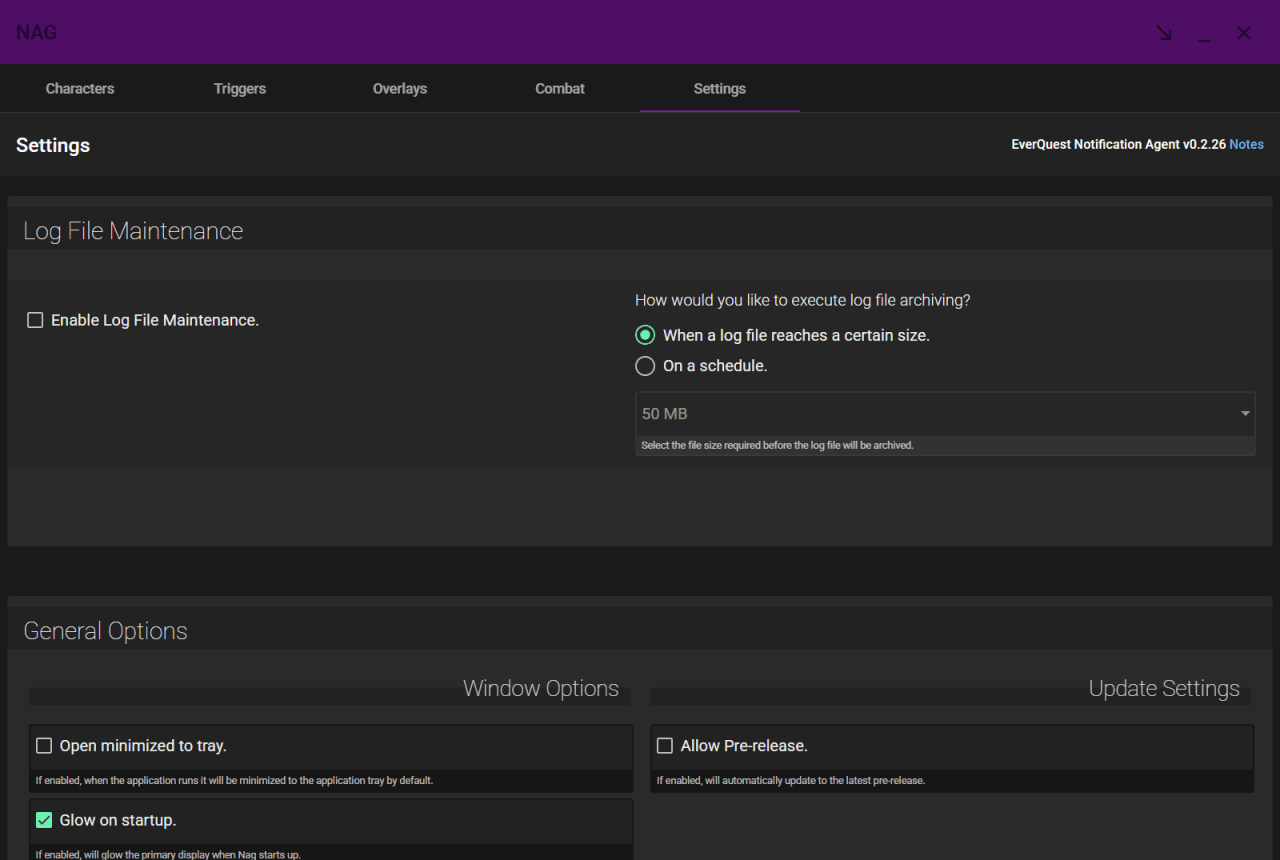
A window called Update Notes opens the first time you run Nag, and once after each update. You can open it again from the Settings tab by clicking Notes at the top.
Nag only offers test versions if you turn on Allow Pre-release. under Update Settings in the Settings tab.
If an update does not install, download the newest installer from the releases page and run it again.